


Which Solana wallets work, how connecting works on desktop, Android, the Android app and iPhone, and how names, avatars and Seeker linking work.
On this page
- Quick facts
- Supported wallets
- Connecting, by device
- Desktop browser
- Android and Solana Seeker
- Android browser
- iPhone and iPad
- Phantom on mobile
- Social and email sign-in (embedded wallet)
- The sign-in signature
- Switching accounts and signing out
- Seeker linking
- Display names
- Avatars
- What other players can see
- Devnet SOL is handled for you
- See also
Pixel Kingdom Wars has no passwords: your Solana wallet is your account, and signing one free message signs you in for a week. This page walks through every way to connect — desktop, Android, the Android app and iPhone — and how your name, avatar and Seeker badge work.
Everything money-related in this playtest runs on Solana devnet — test-net SOL and KEEP with no real value — so connecting a wallet never puts real funds at risk.
Quick facts
- Recommended wallets: Phantom, Solflare, Backpack (shown in that order). Other Wallet-Standard wallets you have installed are listed too; the Jupiter Extension works but is listed after the three recommended ones.
- No wallet? CONTINUE WITH GOOGLE / X / EMAIL creates a wallet for you with no seed phrase (when that option is enabled).
- Sign-in is one free message signature. It never sends a transaction or costs fees.
- A sign-in request is valid for 5 minutes; a session lasts 7 days.
- Display names are 3–16 characters, unique, and can be changed once every 30 days.
- Avatars: JPEG, PNG or WebP up to 8 MiB, resized to 256 px.
- Verified Solana Mobile Seekers get a ◈ badge and can use their
.skrname.
Supported wallets
The game talks to wallets through the Solana Wallet Standard, so most modern Solana wallets work. Three are preferred and always appear first, in this order: Phantom, Solflare, Backpack. The first one you have installed is highlighted in gold.
The Jupiter Extension is recognised too, but ranked after the three preferred wallets until it has been proven end to end on a real device. Jupiter Mobile and QR-code connect are not integrated.
Connecting, by device
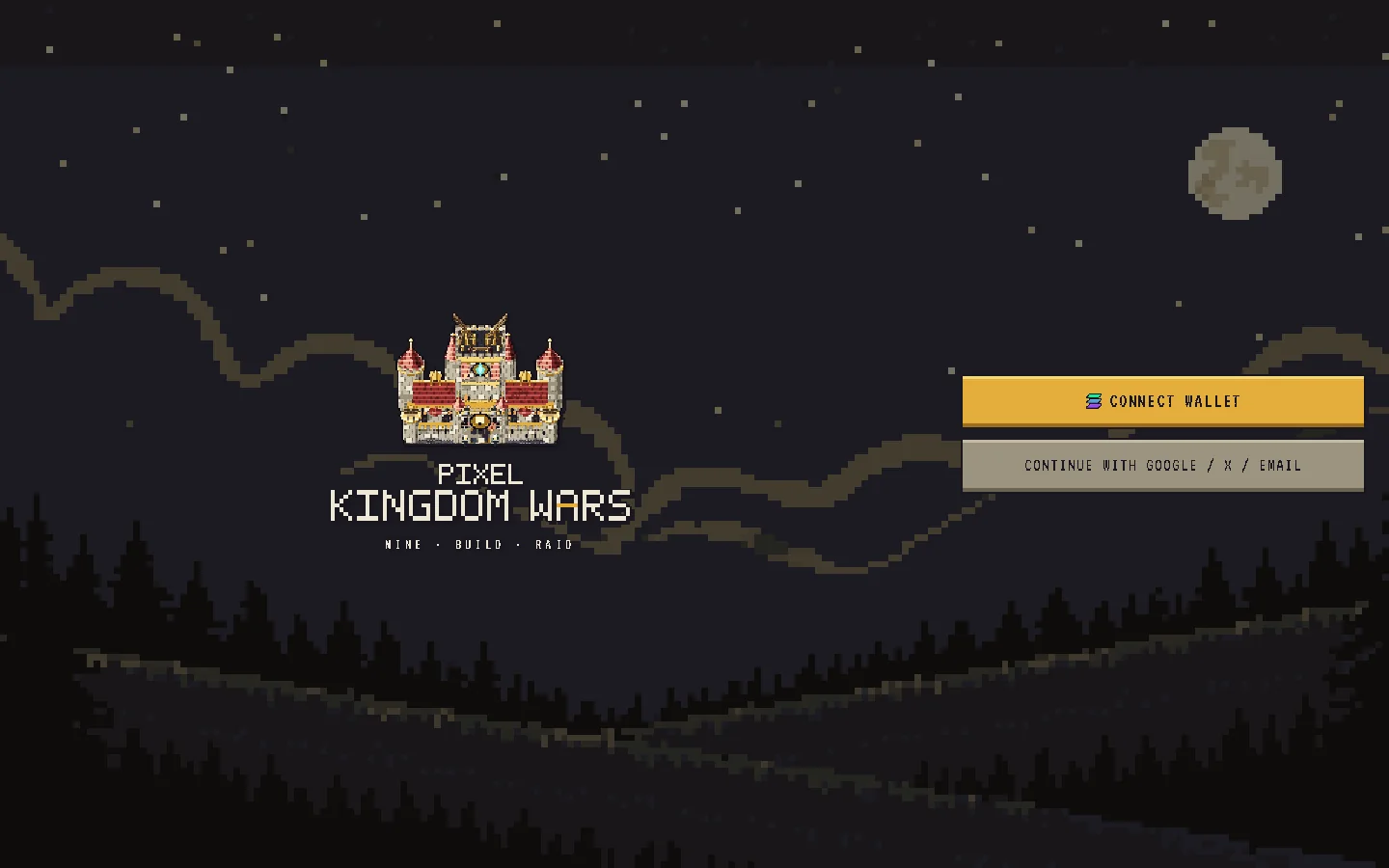
Tap CONNECT WALLET on the title screen. The connect sheet reads your device — desktop or phone, which browser, the Android app or an installed web app — and only offers paths that can work there.
Desktop browser
- An extension is installed: a DETECTED group lists every wallet your browser can load, installed ones first. Below it, NO WALLET YET? offers the social sign-in row (when enabled) and install links.
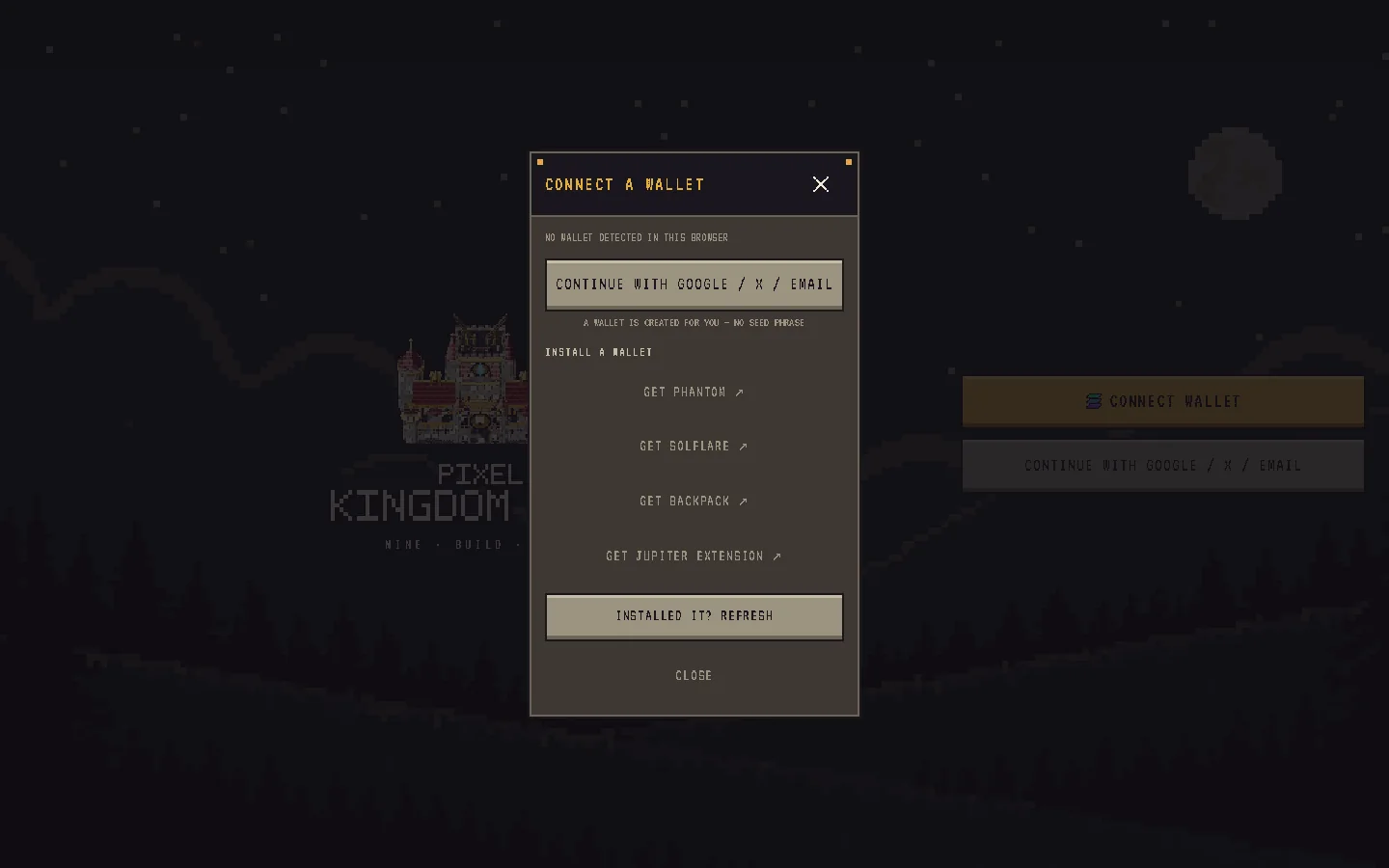
- No extension: the sheet says NO WALLET DETECTED IN THIS BROWSER and shows INSTALL A WALLET with store links. After installing, use INSTALLED IT? REFRESH.
- Safari and other browsers that cannot run extensions: you will see WALLET EXTENSIONS NEED CHROME, BRAVE, EDGE OR FIREFOX — OPEN THE GAME THERE. Switch browsers or use social sign-in.
If the extension is locked you get OPEN THE EXTENSION AND UNLOCK IT, THEN TRY AGAIN. Cancelling in the wallet shows CONNECTION CANCELLED; any other wallet error is shown as the wallet reported it.
Android and Solana Seeker
The Android app — from the Solana dApp Store on a Seeker, or the Android APK from /download — is a native client. It connects to your wallet app through Mobile Wallet Adapter: the game introduces itself as "Pixel Kingdom Wars" and your wallet app asks you to approve.
- Sign-in works exactly as below: one free message.
- Paying is one tap and one confirm: tap a price, confirm PAY … SOL, approve in your wallet, and the game confirms the payment by itself. Nothing is sent before you approve in the wallet.
- A Seeker wallet can also be linked for the ◈ badge — see Seeker linking.
More on the app: Android app and downloads.
Android browser
In Chrome and other Android browsers the sheet offers three routes:
- CONNECT WALLET APP (Mobile Wallet Adapter): whichever Solana wallet app you have is asked to approve. If none answers, the sheet says NO WALLET APP ANSWERED — INSTALL ONE, OR OPEN THE GAME IN A WALLET BELOW.
- OPEN IN PHANTOM / SOLFLARE / BACKPACK: deep links that reopen the game inside that wallet's own browser, each with a DON'T HAVE IT? GET <WALLET> link.
- Already inside a wallet's browser: a direct CONNECT <WALLET> row appears, and the other wallets fold behind MORE WAYS TO CONNECT.
Wallet apps require HTTPS. The public game at play.pixelkingdomwars.com is always HTTPS.
iPhone and iPad
Apple gives wallet apps no way to hand control back to Safari or Chrome, so on iOS the game runs inside your wallet's own browser. The sheet says so up front: IOS KEEPS WALLET APPS OUT OF SAFARI AND CHROME — YOUR WALLET OPENS THE GAME IN ITS OWN BROWSER. Tap OPEN IN PHANTOM / SOLFLARE / BACKPACK and play from there.
If you added the game to your Home Screen, the social sign-in row moves to the top with the note A WALLET APP WOULD TAKE YOU OUT OF THE INSTALLED GAME — SIGNING IN BELOW KEEPS YOU HERE. That is the only way to stay inside the installed web app on iOS.
Phantom on mobile
Phantom's in-app browser gets its own connection path; the button simply says PHANTOM. If Phantom reports an internal error right after you confirm, the sheet shows PHANTOM CONNECTION DID NOT COMPLETE — TAP CONNECT AGAIN, OR RELOAD; a second tap normally succeeds. If it still fails, RELOAD AND TRY AGAIN resets Phantom's in-app bridge.
Social and email sign-in (embedded wallet)
When enabled, the sheet offers CONTINUE WITH GOOGLE / X / EMAIL with the note A WALLET IS CREATED FOR YOU — NO SEED PHRASE. This creates an embedded Solana wallet tied to your Google, X or email identity. You never see a seed phrase, and the game itself is where you confirm actions, so there is no separate wallet pop-up for every click.
The embedded wallet then signs in exactly like any other wallet. You can export its private key; that is protected by the wallet provider's own verification, Privy Wallet MFA. That authenticator is separate from the game's own 2FA and cannot be reset — if you lose it, neither Privy nor Pixel Kingdom Wars can remove it, so keep its setup key somewhere safe. See Deposits, withdrawals and 2FA.
The sign-in signature
After connecting, the title button changes to PLAY AS and your address, shortened to its first and last four characters. Tapping it starts Sign-In With Solana:
- The game asks the server for a one-time challenge for your wallet.
- Your wallet asks you to sign a plain-text message. It reads, in part: "Sign to authenticate with Pixel Kingdom Wars. This request will not trigger a blockchain transaction or cost any fees."
- The server checks the signature and starts your session.
Worth knowing:
- The challenge expires after 5 minutes and works only once. If you wait too long in the wallet, tap PLAY AS again.
- The session lasts 7 days and is kept on the server, so signing out really ends it.
- Signing in creates only your player record. Your first base is created the first time you open the base screen — see Getting started.
Switching accounts and signing out
SIGN OUT lives in PROFILE → SETTINGS. It ends the server session, signs you out of the social provider if you used one, disconnects the wallet and returns you to the title screen. To play as another wallet, sign out, connect the other wallet and tap PLAY AS again. The land checkout screen also has SIGN OUT / SWITCH ACCOUNT.
Seeker linking
Seeker linking is optional; it gives a verified badge and is never required to play. The check reads Solana mainnet (the only mainnet read in the game); everything else stays on devnet.
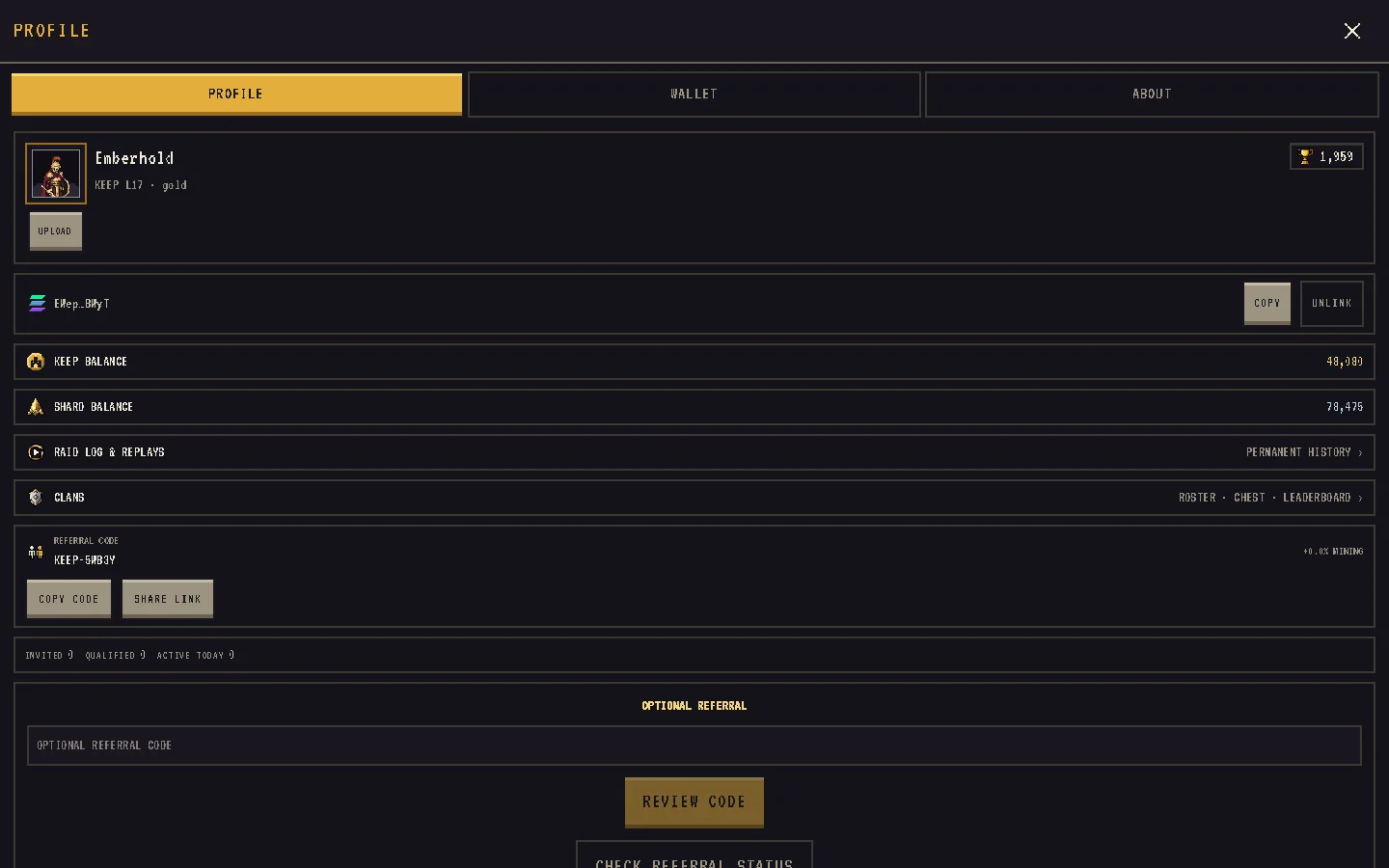
If your Seeker Genesis Token sits on a different wallet than the one you play with — common with social sign-in, because an embedded wallet cannot hold it — you can link it. Open the Seeker section in your Profile, connect the Seeker wallet and sign one message with it. That wallet never becomes your session wallet and never signs a payment; the signature only proves ownership. One Genesis Token can be linked to one game account, ever, and unlinking does not free it for another.
A linked Seeker gets the ◈ badge (VERIFIED SOLANA MOBILE SEEKER) next to their name everywhere a player is shown. Owning a .skr domain alone does not grant the badge.
Display names
Until you pick a name, other players see your short wallet address, and a small reminder on the HUD invites you to choose one. Set it in PROFILE → SETTINGS:
- 3–16 characters: letters, digits,
_and-; it must start and end with a letter or digit; no spaces or dots. - Unique regardless of capitalisation.
- One rename every 30 days.
- Reserved words (admin, moderator, support, staff, system, owner, official, pixelkingdomwars, seeker, solana and similar) are refused.
Verified Seekers may use their .skr domain as their name instead (up to 24 characters, lowercase). If your account has no name when you link, the .skr name is adopted automatically.
Avatars
Upload a picture from phone or PC in PROFILE → SETTINGS. JPEG, PNG and WebP are accepted, up to 8 MiB; the server turns it into a 256 px WebP. Without one you get the default silhouette.
What other players can see
Wherever the game shows a player — map markers, search, clan rosters, the raid log, chat — it shows your display name (or short wallet address) and the Seeker badge if you have one. Nothing from a social login (your email, Google or X identity) is shown to other players.
Devnet SOL is handled for you
You do not need SOL to sign in or to build. When you do need it — land, late Mine and Gold Forge upgrades — the game funds your wallet with 0.5 devnet SOL once your base stands and tops it up when it runs low (up to 3 SOL per wallet, 6 hours between grants). See Getting started.